
How to Use Mirror Mode in HandyGolf
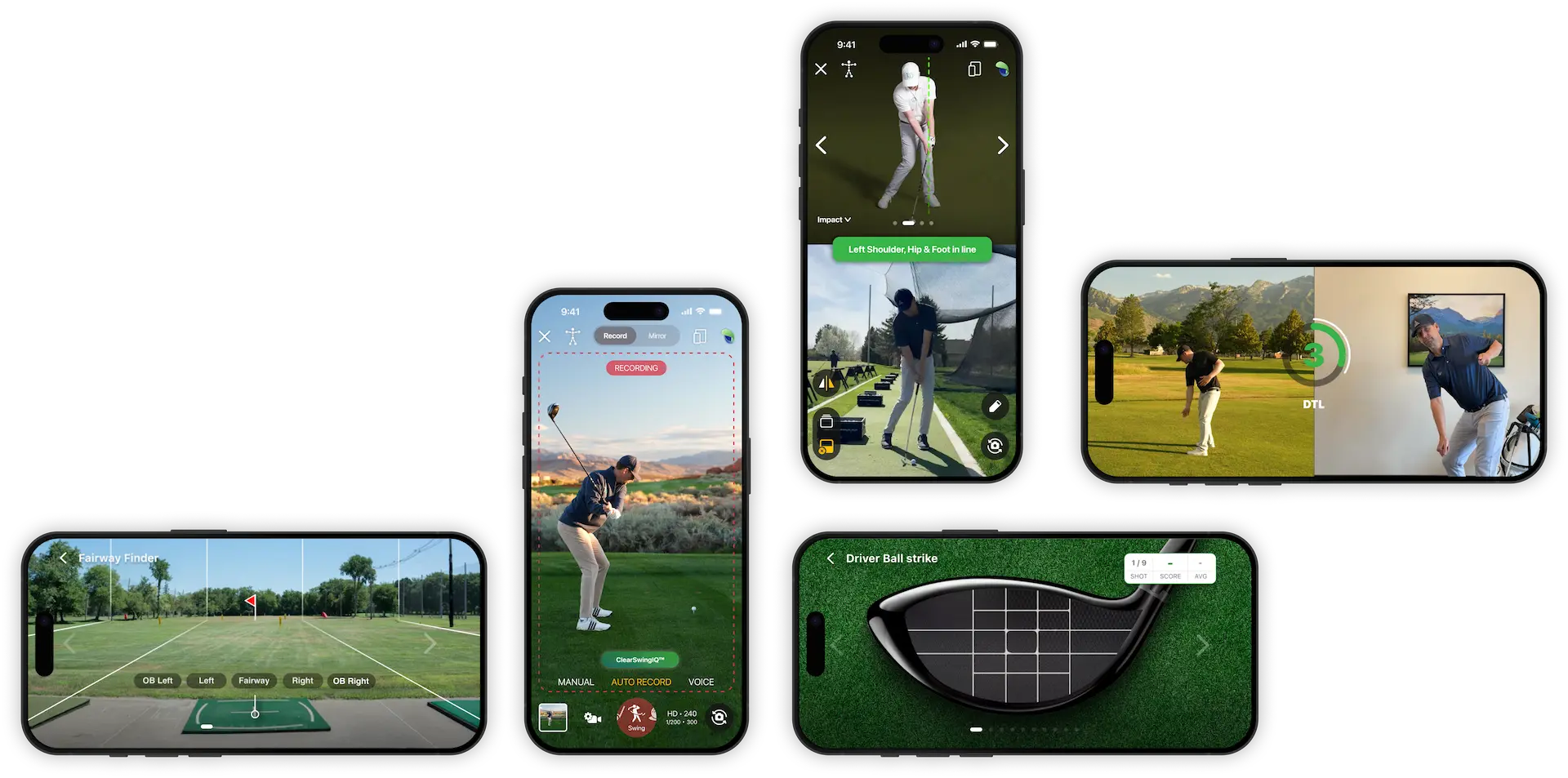
Mirror Mode in HandyGolf turns your phone or tablet into a live practice mirror. It helps you check your setup, body positions, rotation, and swing checkpoints in real time, whether you are practicing at home or on the driving range.
What Mirror Mode Is For
Mirror Mode is designed to give you instant visual feedback. You can use it to:
- Check your golf posture and setup
- Practice takeaway, backswing, impact, or finish positions
- Compare yourself to preset position guides
- Use lines, circles, and angles as visual references
- Practice with or without a golf club
Key Mirror Mode Features
1. Flip the Screen View
In the bottom-left corner, you will find a button that flips the screen view.
Use this if you want to change how you appear on screen, especially when checking positions from different orientations.
2. Hide or Show the Controls
Tap anywhere on the screen to hide the controls and create a cleaner viewing area.
Tap again to bring the controls back when you need to make adjustments.
3. Use Position Mode
Mirror Mode includes a Position Mode option in the bottom-left area of the screen.
You can scroll through available golf positions and use them as a reference. This is helpful when trying to copy or rehearse specific checkpoints in your swing.
To remove the comparison view, tap the comparison button again.
4. Switch Between Front and Back Cameras
Use the camera button in the bottom-right corner to switch between your selfie camera and rear camera.
This allows you to choose the best camera angle depending on where your device is placed.
5. Draw Reference Lines and Shapes
Mirror Mode includes drawing tools that work similarly to the tools in the Swing Recorder.
You can add:
- Straight lines
- Circles
- Free-form drawings
- Angle tools
These tools help you create visual checkpoints for alignment, posture, rotation, shaft angle, head position, or any other swing reference you want to monitor.
6. Adjust Drawing Tools
After adding a line or shape, you can:
- Change its color
- Move it to a new position
- Reposition it for your preferred camera angle
- Clear the screen when you want to start over
How to Practice With Mirror Mode
- Open Mirror Mode in HandyGolf.
- Place your device where you can clearly see your body or golf club.
- Choose the front or rear camera.
- Flip the screen view if needed.
- Select a position guide if you want to compare your movement.
- Add lines, circles, or angle tools for reference.
- Step into frame and rehearse the movement.
- Tap the screen to hide the controls for a cleaner view.
- Make adjustments based on what you see.
Practice Ideas
You do not need to hit golf balls to benefit from Mirror Mode. Try using it to work on:
- Address posture
- Shoulder turn
- Hip rotation
- Takeaway path
- Backswing position
- Impact feel
- Finish balance
You can practice without a club, or you can grab a club and rehearse specific swing positions.
Summary
HandyGolf Mirror Mode is a simple and effective way to build feedback into your practice. By using camera controls, position guides, and drawing tools, you can check your movements in real time and develop better awareness of your golf swing.