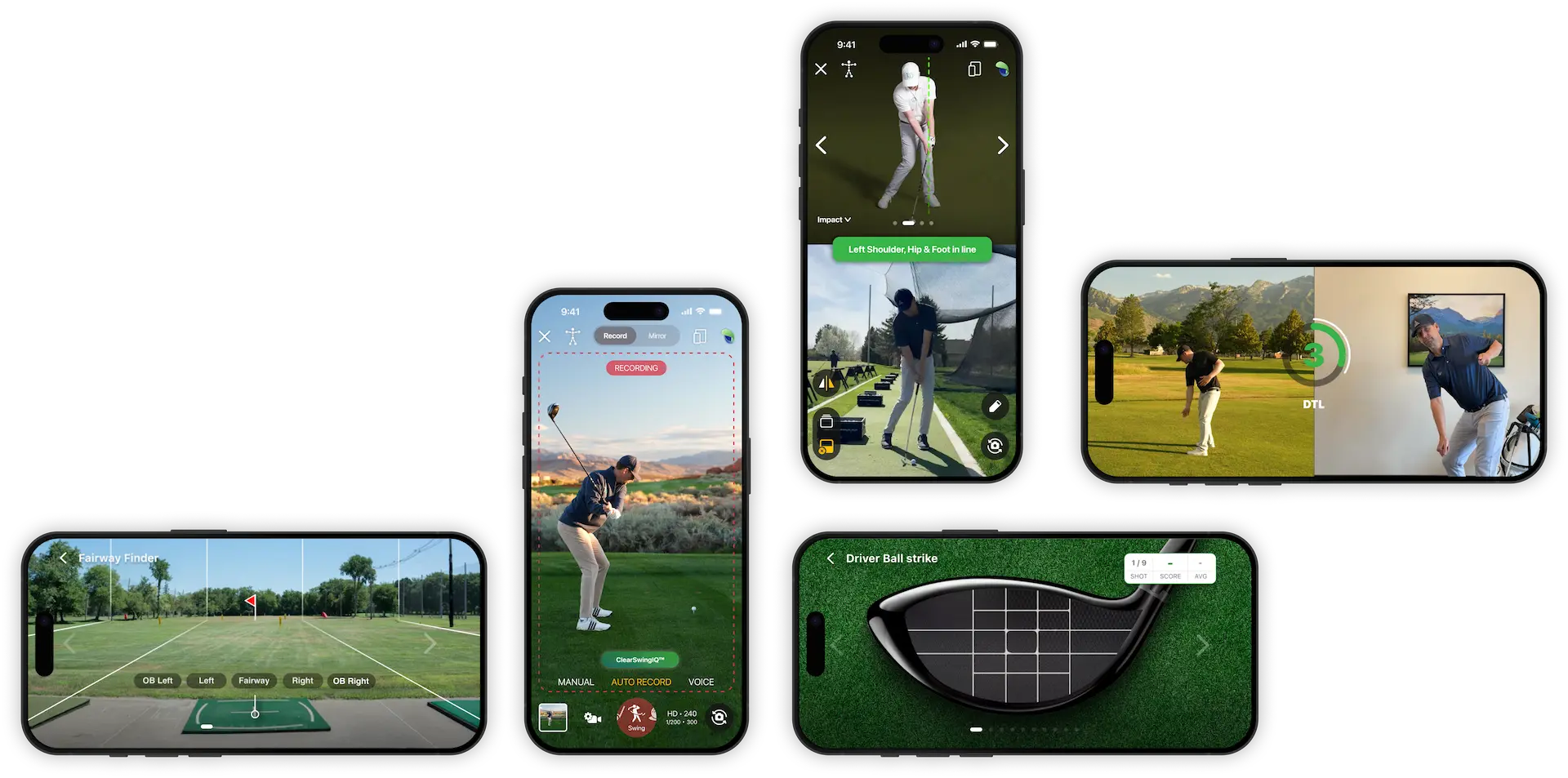

How to Use Manual Recording Mode in the Handy Golf App
Manual recording mode in the Handy Golf app lets you start and stop the camera yourself, making it useful when you are filming your own golf swing without someone behind the phone.
Follow these steps to record and trim your swing video.
Steps
- Open the camera From the main screen of the Handy Golf app, tap the camera button in the middle of the screen.
- Select Manual mode Tap the Manual button to switch from automatic recording to manual recording.
- Wait for Swing IQ to optimize the camera (Allow the app’s Swing IQ feature to optimize the lighting and camera conditions before recording.)
- Start recording Tap the record button.
- Walk into position If you are recording yourself, walk into the frame and get set up for your shot.
- Hit your golf shot Make your swing while the camera is recording.
- Stop the recording Walk back to your device and tap the stop button.
- Save the video Tap Save to keep the recorded clip.
- Open the trim tool Tap the trim tool in the bottom-right corner of the screen.
- Trim the beginning and end Use the green sliders to choose the start and end points of your swing. Move the first slider to the beginning of the swing and the second slider to the end of the swing.
- Save the trimmed clip Tap Save to apply the trim, then tap Save again to finalize the video at the selected length.
Tip
When recording yourself, make sure the phone is positioned securely and that your full body and club are visible in the frame before you start your swing.