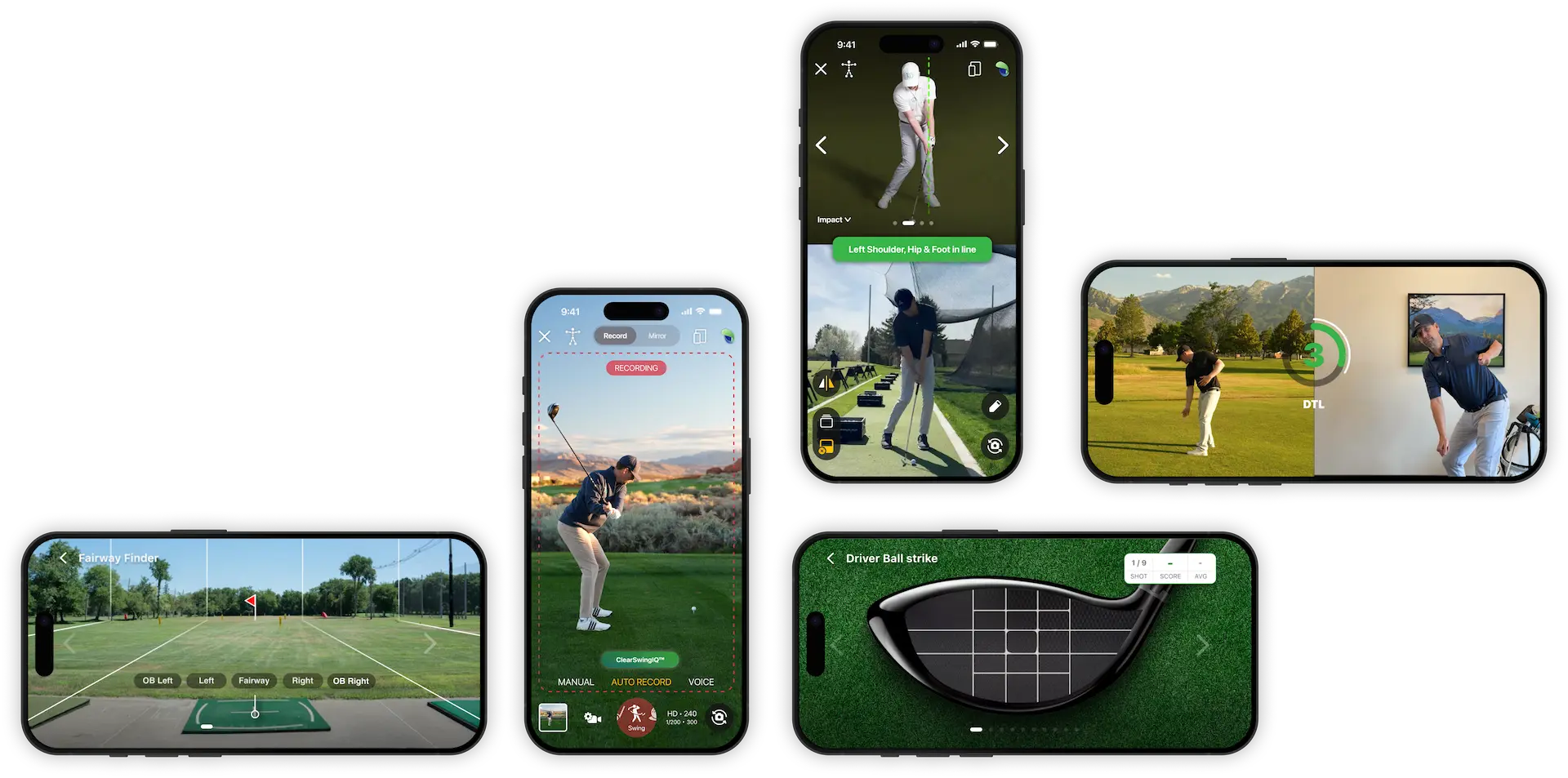

How to Use Advanced Camera Settings in the HandyGolf Swing Recorder
The HandyGolf Swing Recorder is designed to make filming your golf swing simple. For most players, the automatic settings and Clear Swing IQ technology will handle the camera setup for you. However, if you want more control over video clarity, brightness, frame rate, or lens selection, you can use the advanced camera settings.
Opening Advanced Mode
At the bottom of the swing recorder screen, you will see a row of numbers or camera setting indicators. Tap this area to open Advanced Mode.
Advanced Mode gives you control over:
- Clear Swing IQ optimization
- Camera lens selection
- Recording quality
- Frames per second, or FPS
- Exposure settings
- Shutter speed
- ISO
Clear Swing IQ: Motion vs. Light
Clear Swing IQ can be optimized for either motion or light.
Light Mode
Choose Light when you want the video to look brighter and more presentable.
This is helpful when:
- You are filming in darker conditions
- You are indoors
- You want the overall image to look better
- Club blur is less of a concern
Motion Mode
Choose Motion when you want the clearest possible view of the club during the swing.
This is helpful when:
- You want to analyze club position
- You are filming a fast swing
- You need sharper frames for swing review
- You are in bright enough lighting to support a faster shutter speed
Keep in mind that Motion mode can make the video look darker because it prioritizes image clarity and reduced blur.
Automatic vs. Manual Camera Settings
By default, camera and exposure settings are automatic. This is the best choice for most golfers because Clear Swing IQ adjusts the settings for you.
Use automatic mode when:
- You want the easiest setup
- Lighting conditions are changing
- You are not sure which settings to choose
- You simply want to record and review your swing quickly
Use manual mode when:
- You want to fine-tune video brightness or sharpness
- You understand basic camera settings
- You are trying to reduce club blur
- You are filming in a consistent lighting environment
Camera Lens Options
In manual camera settings, you may be able to select from available phone camera lenses, depending on your device.
Common options include:
- Standard camera
- Ultra wide camera
- Telephoto camera
The standard camera is usually the easiest choice for swing recording. Ultra wide can help if you are close to the golfer or have limited space. Telephoto can be useful from farther away, but it may be harder to frame the full swing.
Recording Quality and Frames Per Second
Advanced Mode also allows you to adjust recording quality and frames per second.
Higher recording quality can produce a clearer video, but it may use more storage space. Higher FPS can make swing motion easier to review, especially when slowing the video down.
For swing analysis, a higher FPS setting is generally helpful when available.
Understanding Shutter Speed
Shutter speed affects how clearly fast movement appears in each frame.
A faster shutter speed, such as 1/8000, can make the golf club look much sharper during the swing. This is useful for analyzing the club, but it also darkens the image.
A slower shutter speed, such as 1/40, allows more light into the image, making the video brighter. However, the club will appear more blurry during fast motion.
Simple shutter speed rule
- Faster shutter speed = clearer club, darker image
- Slower shutter speed = brighter image, more club blur
If you want the clearest view of the club, use a faster shutter speed when lighting allows.
Understanding ISO
ISO controls how bright the image appears.
A lower ISO creates a darker image. A higher ISO creates a brighter image.
However, very high ISO settings can make the video look grainy or noisy.
Simple ISO rule
- Lower ISO = darker, cleaner image
- Higher ISO = brighter image, more grain
Use ISO to brighten the video only as much as needed. If the image becomes too grainy, try improving the lighting instead.
Recommended Starting Point
For most golfers, start with automatic mode and let Clear Swing IQ handle the settings.
If you want to experiment manually, try this approach:
- Choose Motion if your main goal is club clarity.
- Choose Light if the video is too dark.
- Use a higher FPS setting if available.
- Increase shutter speed to reduce blur.
- Raise ISO only if the image is too dark.
- If the image gets too grainy, lower ISO or add more light.
Best Practice
Advanced settings are designed for golfers who want to dial in their recording setup. If you are unsure, leave the camera and exposure settings on automatic. HandyGolf’s Clear Swing IQ technology is built to manage the settings for you so you can focus on recording your swing.