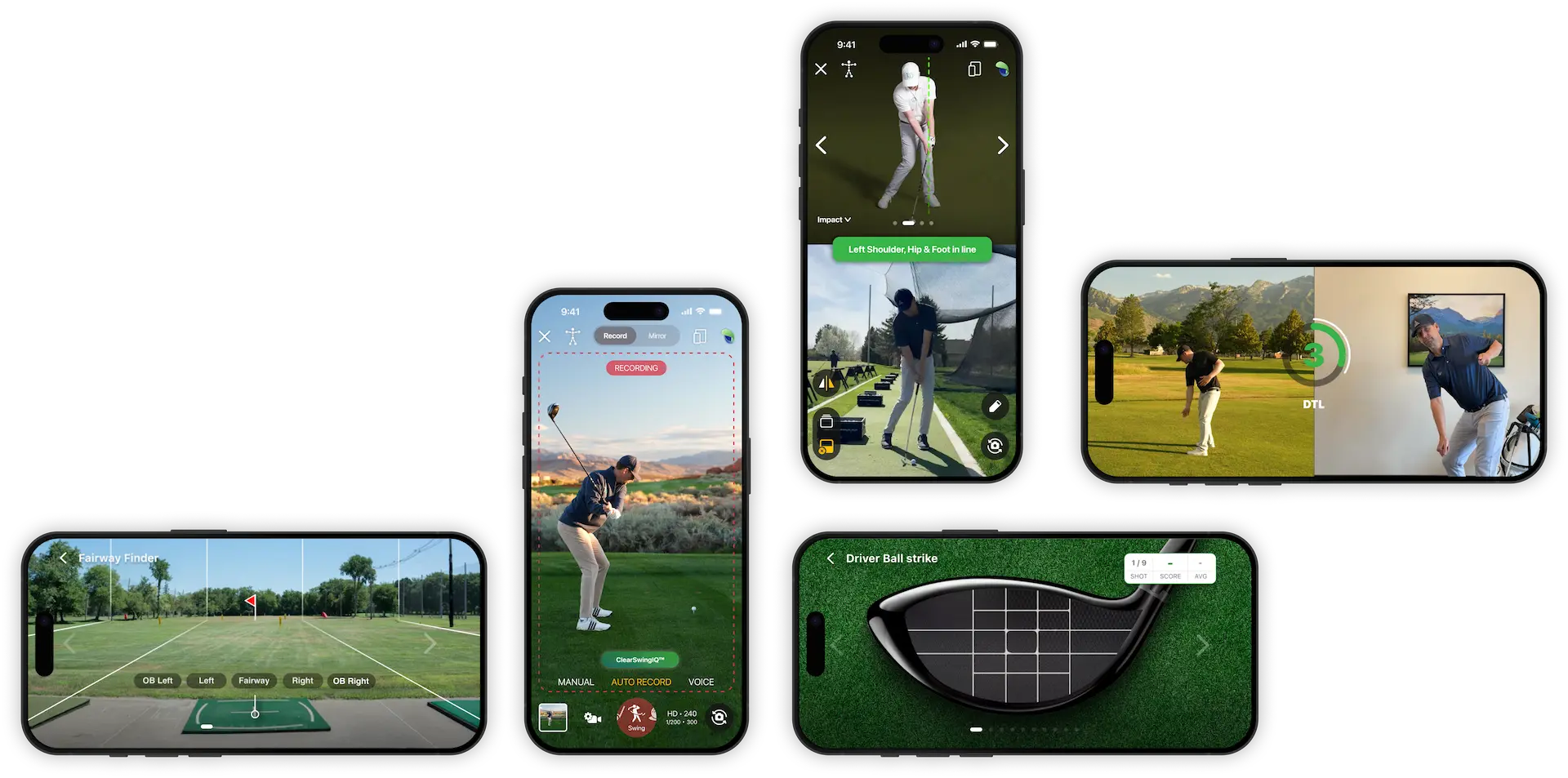

How to Record a Golf Swing Using Auto Detect
Auto Detect makes it easy to record your golf swing without tapping your phone before every shot. Once the camera is set, the app detects each swing automatically so you can focus on hitting the ball.
Steps
1. Open the camera
Select the camera icon to begin recording.
2. Wait for the camera to optimize
Allow ClearSwing IQ to optimize the camera settings before stepping in to hit your shot.
3. Position yourself in the guide box
Make sure your body and swing area are inside the dotted line box shown on the screen. This helps Auto Detect capture the swing correctly.
4. Hit your golf shot
Once you are in position, hit the shot. Auto Detect will recognize the motion and record your swing automatically.
5. Choose whether to save or hit another shot
After the swing is captured, you have two options:
- Save the swing data
- Hit another golf shot
If you want to record another swing, you do not need to adjust the camera or tap the phone again. Simply step in and hit another shot, and Auto Detect will capture it.
6. Save the swing
When you are ready to keep a swing, tap Save.
7. Add swing details
Enter any details you want to attach to the swing, such as:
- Club used
- Swing position such as face-on or down-the-line
- Shot shape such as straight, draw, or fade
- Comments or notes about the swing
Tap Save again to store the swing.
8. Review and annotate the swing
After saving, the swing will appear in your camera roll or saved swing library. From there, you can scroll through the swing and add lines or other analysis tools as needed.
9. Return to Auto Detect
To record more swings, press the Back button and return to Auto Detect. You can then start the process again.
Tips for Best Results
- Keep the phone steady after the camera is set.
- Make sure you remain inside the dotted guide box.
- Give the app a moment to optimize before hitting your first shot.
- Use comments to note what you were working on during the swing.
Using Auto Detect is a simple way to capture multiple swings efficiently during practice without repeatedly touching your device.