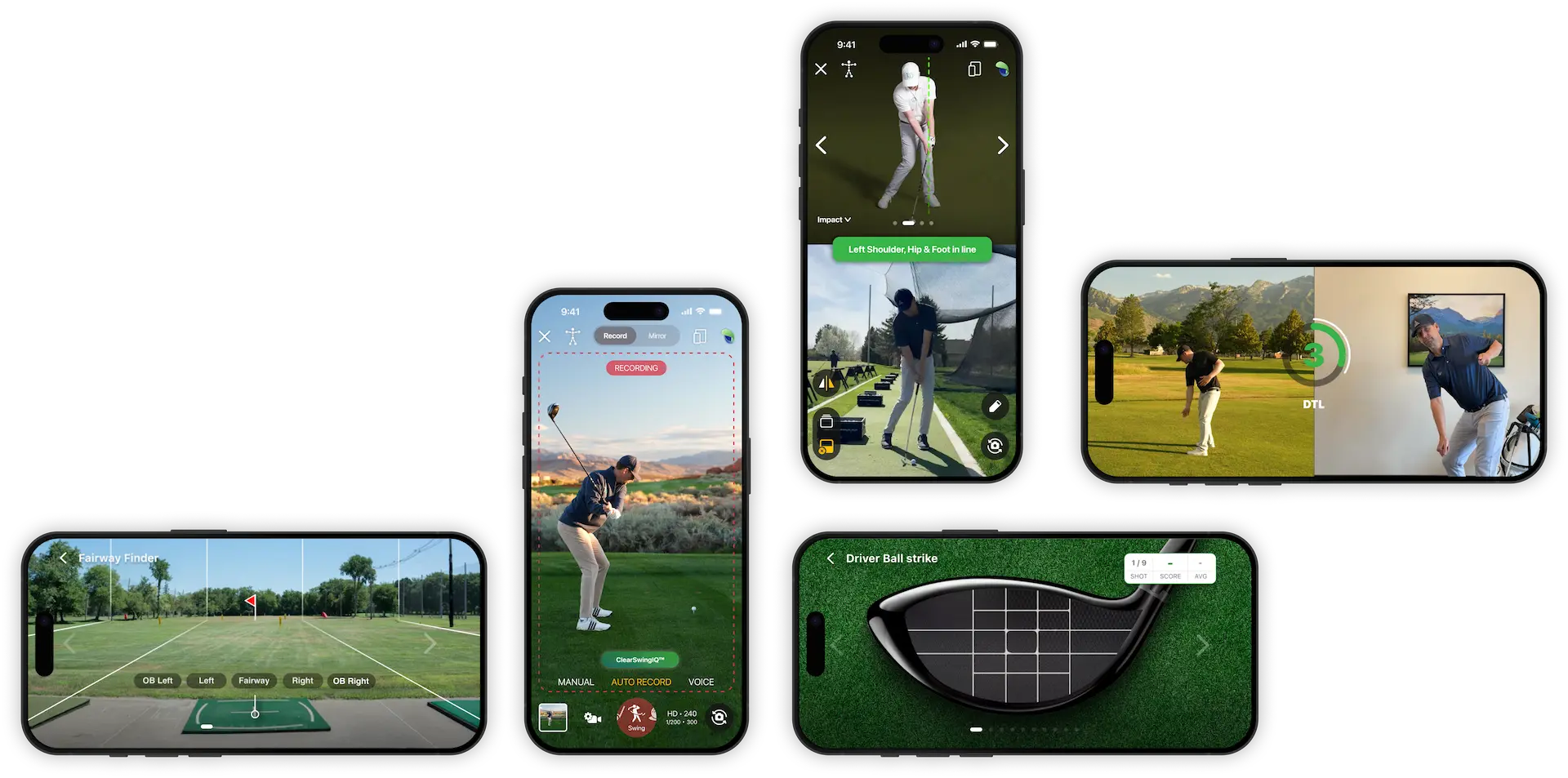

How to Adjust Auto Record Swing Sensitivity
Auto Record is designed to capture your golf swing automatically, and for most players the default settings will work well. However, if your videos are recording at the wrong time, missing swings, or capturing too much before or after the swing, you can fine-tune the settings.
Open the Auto Record settings
- Go to the Auto Record screen.
- Tap the small settings button in the bottom-left corner.
- Review the available recording options, including Swing Detection, Pre-Swing Recording Length, and Post-Swing Recording Length.
Adjust Swing Detection sensitivity
The Swing Detection setting controls how sensitive Auto Record is when identifying a golf swing.
- Lower sensitivity: Use this if the app is recording too easily, such as when it picks up waggles, rehearsal moves, or other non-swing movement.
- Medium sensitivity: This is the default setting and should work well for most golfers.
- Higher sensitivity: Use this if the app is not detecting or recording your full golf swing.
If you need to adjust this setting, make one change at a time and test a few swings before changing it again.
Adjust pre-swing and post-swing recording length
You can also control how much video is captured before and after the swing.
Pre-Swing Recording Length
This controls how much footage is saved before the swing is detected.
- Increase it if the beginning of your swing or setup is being cut off.
- Decrease it if the video includes too much time before the swing.
Post-Swing Recording Length
This controls how much footage is saved after the swing is detected.
- Increase it if your finish is being cut off.
- Choose a shorter length if the recording continues too long after the swing.
For example, if your videos consistently include too much footage after impact and follow-through, set the Post-Swing Recording Length to a shorter option.
When should you change these settings?
In most cases, you should not need to change these settings. HandyGolf’s ClearSwing IQ technology is built to manage swing capture automatically. Adjustments are usually only needed if:
- You have a unique swing tempo or motion.
- You make a lot of waggles or rehearsal movements.
- You are recording in an unusual environment.
- Auto Record is missing swings or capturing too much extra footage.
Best practice
Start with the default Medium swing detection setting. If your clips are not coming out correctly, adjust sensitivity or recording length slightly, then test again until your swing videos are captured cleanly.