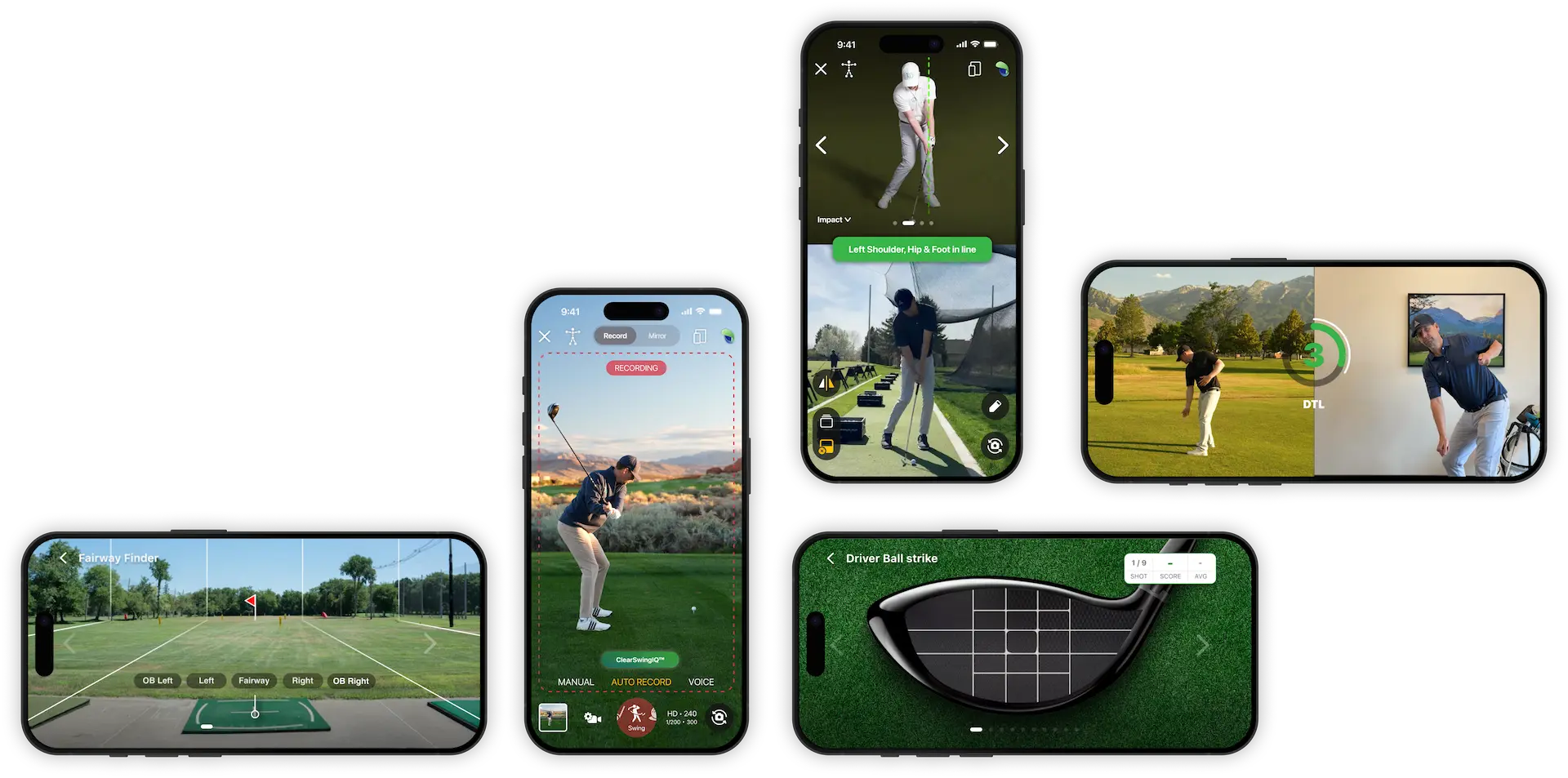

Handy Golf Swing Recorder Overview
The Handy Golf Swing Recorder makes it easy to capture, review, and save your golf swings inside the app. This quick overview explains the main controls so you can start recording right away.
Open the Swing Recorder
To access the recorder, tap the camera button in the Handy Golf app.
When the recorder opens, Clear Swing IQ technology helps optimize the camera for your environment. It adjusts for lighting and camera settings so your swing footage is as clear and useful as possible.
Choose a capture mode
The Swing Recorder includes three capture modes:
- Manual: Start and stop recording yourself.
- Voice: Use voice activation to help capture swings hands-free.
- Auto Record: Let the app detect your setup and automatically capture your swing.
For most users, Auto Record is the easiest option and works very well by default.
Select your camera and club
Before recording, you can choose:
- Which camera to use
- Which club you are hitting
For example, if you are practicing with a pitching wedge, select Pitching Wedge as your club. This helps keep your recorded swings organized and easier to review later.
Understand key settings
The recorder includes additional settings that are covered in more detailed tutorials, but two important options are useful to know right away.
Autosave
By default, Autosave is turned off.
When Autosave is off, you must manually save each swing you want to keep. If you turn Autosave on, the app will automatically save every recorded swing.
Use Autosave if you want to capture every repetition during a practice session without stopping to save each clip.
Full Shot vs. Swing Only
You can also choose the motion capture type:
- Full Shot: Records the swing and a little footage after impact, which is helpful if you want to see the ball flight.
- Swing Only: Records just the golf swing.
Choose Full Shot when ball flight matters, and choose Swing Only when you mainly want to analyze your body motion, club position, or swing mechanics.
Record a swing with Auto Record
To use Auto Record:
- Make sure the recorder is set to Auto Record.
- Step into the camera frame.
- Let the app recognize your body.
- Hit your shot.
- The app will process the swing and automatically show a replay.
If you do not want to review the swing, simply hit another shot. The app will continue capturing your latest swing.
Review your swing
After a swing is captured, the video player opens so you can analyze the motion.
From the player, you can:
- Pause the swing
- Draw lines on the video
- Change playback speed
- Adjust wheel sensitivity
- Review the swing frame by frame
These tools help you take a closer look at positions, tempo, alignment, and other details in your swing.
Add swing information and comments
If you want to save more detail with the swing, tap the Info button.
You can add information such as:
- Practice notes or comments
- What you were working on
- Camera position, such as face-on or down-the-line
- Shot shape
- Other swing details you want to remember
Adding notes makes it easier to track changes in your swing over time.
Save the swing to your library
If Autosave is not enabled, tap Save in the top-right corner to keep the swing.
Once saved, the swing will be stored in your Handy Golf library for future review.
Summary
The Handy Golf Swing Recorder is designed to make swing capture simple. Open the camera, choose your mode, step into frame, and let Auto Record capture your swing. From there, you can review the replay, use analysis tools, add notes, and save the video to your library.
For deeper explanations of each button and feature, see the more detailed Handy Golf Swing Analyzer and Swing Recorder tutorials.