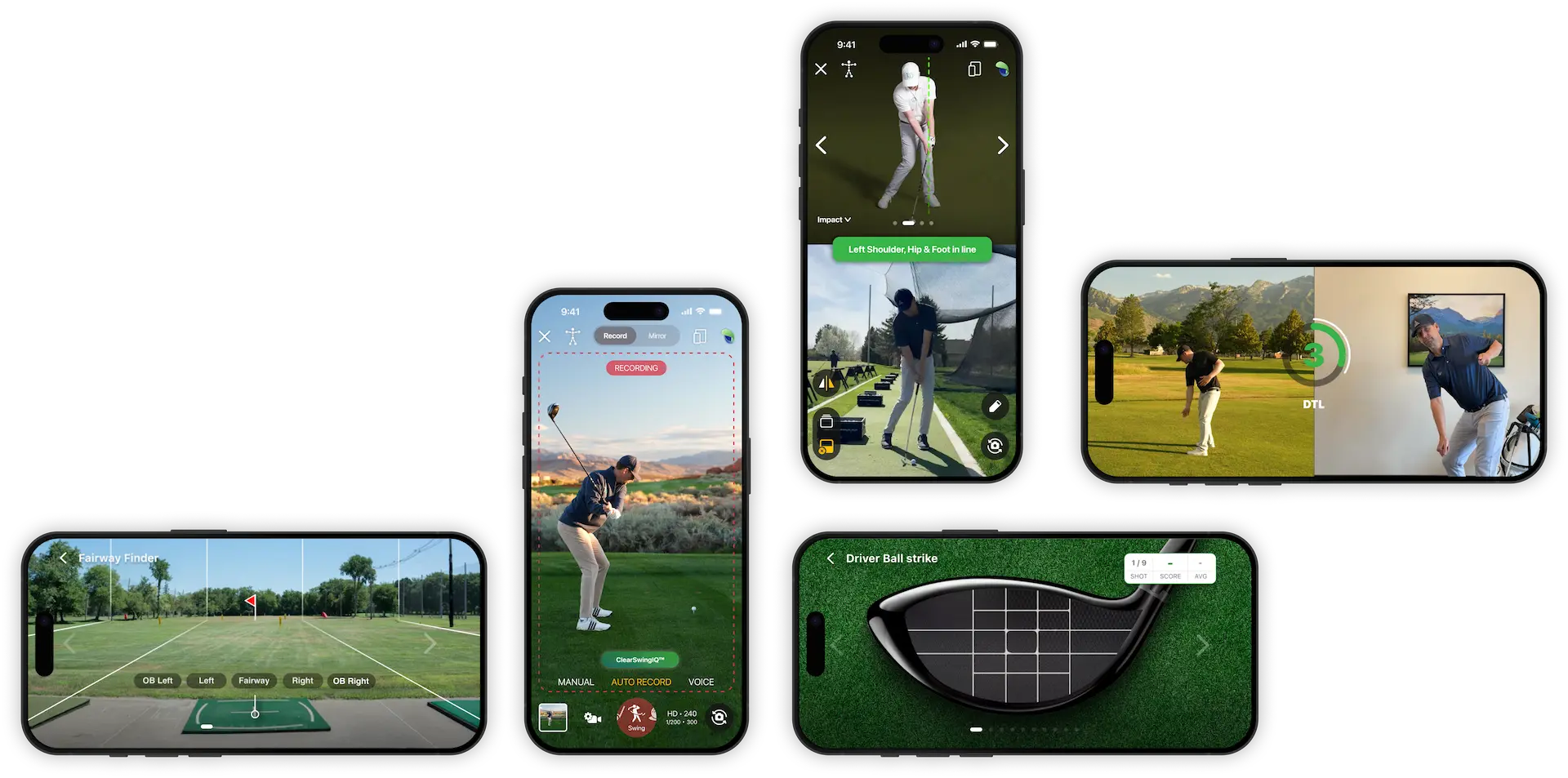

How to Use Drills and Drill Practice in the Handy Golf App
The Drills section in the HandyGolf app helps you find targeted practice routines for different parts of your game. You can browse recommended drills, search by category, work on specific fixes, and use Drill Practice to follow along with a drill video while viewing yourself on camera.
Open the Drills section
- Open the HandyGolf app.
- Tap Train.
- Select Drills.
You will see a range of drill categories, including recommended drills at the top and additional categories below.
Browse drill categories
Use the categories to find the type of practice you need.
For example:
- Select Putting to view putting drills.
- Select Fixes if you want help correcting a specific problem.
- To work on a shank, go to Fixes, scroll through the options, and choose a drill designed to help fix a shank.
Use Drill Practice
Some drills include a follow-along feature called Drill Practice. If a drill supports this feature, you will see a Start Practice button at the bottom of the screen.
To begin:
- Select a drill that includes Drill Practice.
- Tap Start Practice.
- Rotate your device to landscape mode when prompted.
Once your device is in landscape mode, the screen will show:
- The drill video on the left.
- Your camera view on the right.
This allows you to copy the drill movement in real time while comparing your motion to the demonstration.
Choose your camera angle
In Drill Practice, you can choose how the drill video is shown:
- Down the line: Shows the drill from a down-the-line camera angle.
- Face on: Shows the drill from a face-on camera angle.
- Both: Alternates between down-the-line and face-on views, so you can see the movement from both perspectives.
Using both views can be helpful when you want a clearer understanding of the movement pattern.
Set your sets and reps
You can also choose how many sets and reps you want to complete during the drill. Adjust these settings based on your practice goal and how familiar you are with the movement.
If the drill is new, start with fewer reps and focus on quality. As the movement becomes easier, you can increase the volume.
Adjust playback speed
Drill Practice lets you control the playback speed of the demonstration video. This is useful if the movement feels too fast to copy at first.
Playback speed options include very slow speeds, such as 1/8 speed, up to real time.
If you are struggling to match the drill:
- Tap the screen.
- Reduce the playback speed.
- Press Continue.
- Use the countdown to get back into position.
Slowing the video down can make it much easier to learn the timing and movement.
Use sound for rhythm
In the bottom-left corner, there is a sound button. This plays music during the drill, which can help you build rhythm while you practice.
Switch cameras
In the bottom-right corner, there is a camera button. Use this to switch between:
- The back camera.
- The selfie camera.
Choose the camera that gives you the best view of your setup and movement.
Split screen and mirror settings
Drill Practice includes additional display controls:
- Split screen: Choose whether to show the drill video and your camera view side by side.
- Mirror video: Mirror the demonstration video.
- Mirror camera: Mirror your camera view.
The app defaults to mirror settings that are designed to make copying the movement easier, but you can adjust them to suit your preference. If something looks confusing, try changing the mirror settings until the movement is easier to follow.
Start and follow along
When your settings are ready:
- Tap Start.
- Get into position during the countdown.
- Follow along with the drill video.
- Watch your camera view to compare your movement with the demonstration.
If the drill feels too fast or difficult, pause or tap the screen, slow down the playback speed, and continue.
Why Drill Practice is useful
Drill Practice is designed to help you learn golf movements more clearly. Instead of watching a drill and then trying to remember it, you can practice alongside the video and use your camera view for instant feedback.
This makes it especially useful when you are:
- Learning a new swing movement.
- Working on a specific fault or fix.
- Practicing putting drills.
- Trying to match timing, rhythm, or body positions.
- Comparing your motion to a demonstration in real time.
Use the feature regularly to make your practice more structured and easier to follow.