
How to Screen Mirror HandyGolf from iPhone to Your TV
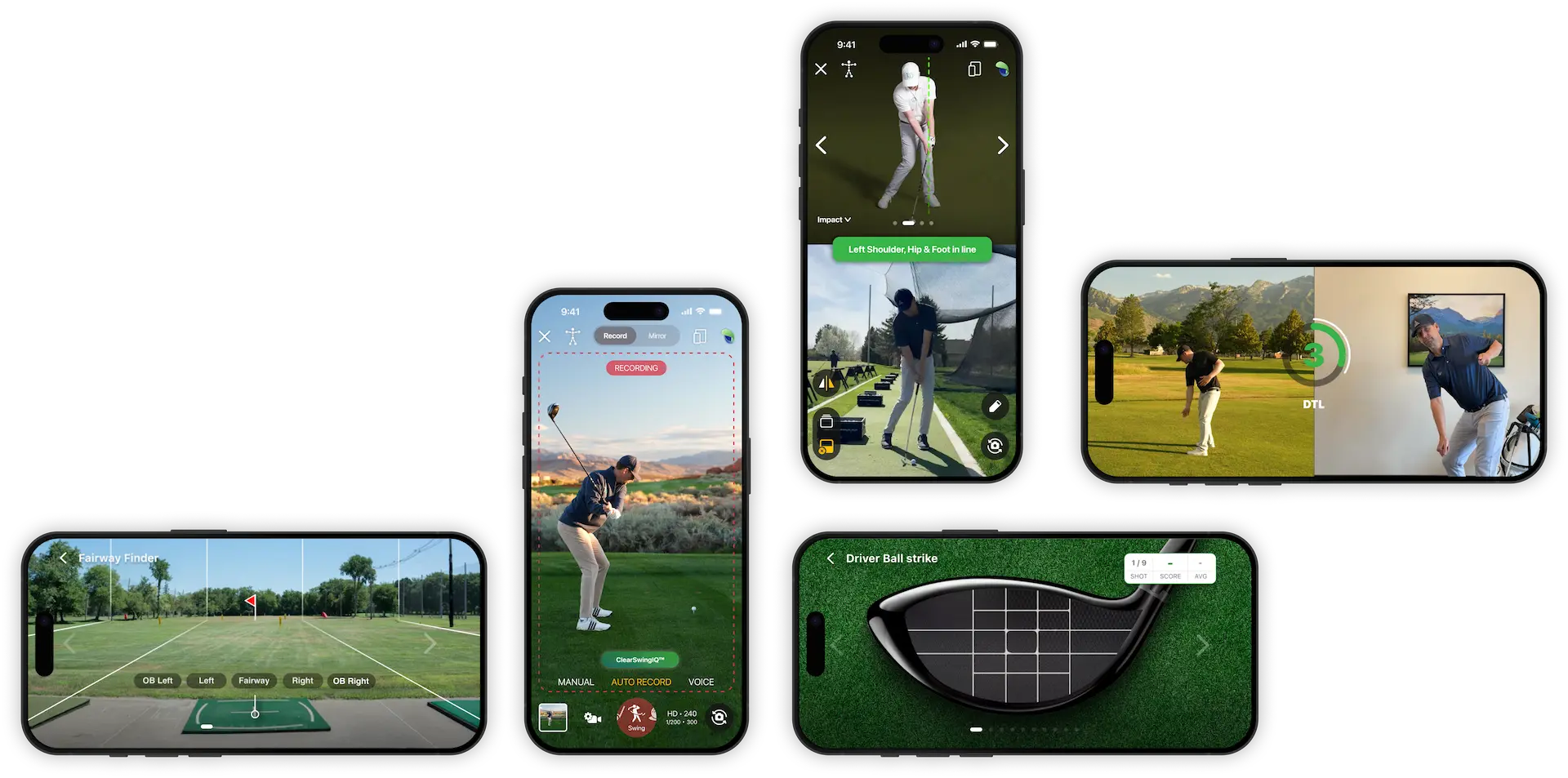
Screen mirroring your iPhone or iPad to a TV can make the HandyGolf app easier to see and use. The larger screen is especially helpful when following drill practice sessions, using the HandyGolf Swing Mirror, or reviewing swings with the Swing Recorder.
What You Need Before You Start
Before screen mirroring, make sure you have:
- An iPhone or iPad with the HandyGolf app installed
- A TV that supports Apple AirPlay, or an Apple TV connected to your television
- Your iPhone or iPad connected to the same Wi-Fi network as the TV or Apple TV
How to Screen Mirror HandyGolf to Your TV
-
Turn on your TV
Make sure your AirPlay-compatible TV or Apple TV is powered on and ready. -
Connect to the same Wi-Fi network
On your iPhone or iPad, confirm that you are connected to the same Wi-Fi network as the TV. -
Open Control Center
Swipe down from the top-right corner of your iPhone or iPad screen to open Control Center. -
Tap Screen Mirroring
Look for the icon with two overlapping rectangles, then tap it. -
Select your TV
Choose your AirPlay-compatible TV or Apple TV from the list of available devices. -
Open HandyGolf
Once your screen is mirrored, open the HandyGolf app and use it on the larger TV display.
Useful HandyGolf Features to Use on a TV
Screen mirroring can be especially useful for:
- Swing Mirror: View your setup, posture, and movement on a larger screen.
- Drill Practice: Follow along with practice drills more easily.
- Swing Recorder: Review your swing footage with a clearer, larger display.
If Your TV Does Not Appear
If you do not see your TV in the Screen Mirroring menu:
- Check that the TV supports Apple AirPlay.
- Make sure AirPlay is enabled in your TV settings.
- Confirm both devices are on the same Wi-Fi network.
- Restart your iPhone or iPad and the TV.
- Update your iPhone, iPad, Apple TV, or smart TV software if needed.
How to Stop Screen Mirroring
To stop mirroring, open Control Center again, tap Screen Mirroring, then select Stop Mirroring.
Using HandyGolf on a bigger screen can make practice sessions easier to follow and can help you get more value from the app, especially when working in a home setup, studio, or indoor practice space.